
Free tool Nothing uploaded ·
Instagram safe zone checker
For Reels, Stories and Feed posts: drop in a frame from your video and see what the buttons, caption, reply bar or Shop now bar will cover. Mark your text, logo or product, and the checker flags anything in the way. It all runs in your browser.
Result · Reels ad
Mark what matters
Add a box over your text, logo or product to check it.
Margins from Meta’s Ads Guide, checked 14 October 2026. The app’s layout varies by device and version, so treat this as a guide.
How is this checked?
Each margin is a share of the frame. A mark is covered when any part of it sits outside the safe area, and we show how much of it is hidden.
The like, comment and share buttons sit on the right, just above the bottom margin. Meta gives no number for them, so a mark there gets a heads-up, not a fail.
Creators upload. Brands review. One thread.
Every video, note and revision stays in one place inside Myah.The Instagram safe zone in pixels
The Instagram safe zone is the part of a Reel or Story that the app’s buttons, caption, profile bar and reply bar don’t cover. For Reels and Stories ads, Meta asks you to keep 14% of the top, 35% of the bottom and 6% of each side free of text, logos and other key elements. On a 1080 × 1920 video that is 269 pixels at the top, 672 at the bottom and 65 on each side. Here is every placement the checker knows, with its source. Meta publishes numbers for the first three; the others are marked as guides.
| Placement | Top | Bottom | Each side | Source |
|---|---|---|---|---|
| Reels and Stories adsInstagram Reels, Instagram Stories, Facebook Reels, 9:16 Feed video | 14% · 269 px | 35% · 672 px | 6% · 65 px | Meta Ads Guide |
| Reels ads with a disclaimer | 14% · 269 px | 40% · 768 px | 6% · 65 px | Meta Business Help Center |
| Facebook Stories video ads | 14% · 269 px | 20% · 384 px | Not stated | Meta Ads Guide |
| Feed post, 4:5Nothing sits on top of the image. Our guide and the grid crop are shown instead. | None | 250 px guide | 100 px guide · 34 px grid cut | Meta Help Center · Lucid Media · Hootsuite |
| Organic ReelsThe checker uses the ad margins as a cautious guide | No published numbers | Instagram Help Center | ||
| Organic Instagram StoriesA 1080 × 1610 safe area, assumed centred. Story ads use the first row. | 155 px guide | 155 px guide | None | Hootsuite · Sprout Social |
| Profile grid coverIf the grid tile is 3:4 and centred | 240 px cut | 240 px cut | None | Instagram, Jan 2025 |
At 1440 × 2560, the size Meta now recommends, the same margins come to 358 pixels at the top, 896 at the bottom (1,024 with a disclaimer) and 86 on each side. Meta’s Facebook Stories page also lists 250 and 340 pixels, which don’t match its own percentages, so the checker uses the percentages.
The Instagram Story safe zone
Stories and Reels are both 9:16, but different parts of the screen are covered. On an organic Story, the progress bar, your profile name and the close button sit along the top, and the reply bar and share button sit along the bottom. There’s no column of like and share buttons down the right, so the Story safe zone is taller than the Reels safe zone.
Instagram doesn’t publish numbers for organic Stories. Hootsuite and Sprout Social both give a safe area of 1080 × 1610 pixels, so the checker’s Story placement keeps about 155 pixels clear at the top and the bottom and labels it a guide. Story ads are different: they carry a call-to-action, and Meta’s Stories ad specs use the same 14% top, 35% bottom and 6% side margins as Reels ads, so pick Reels ad to check an ad that runs in Stories. Stickers, polls and links you add sit on top of the Story too, so keep them clear of your own text.
How the checker works
- Drop in a screenshot, a still or the video itself. It opens in your browser; nothing is sent anywhere. With a video, scrub to the frame you want to check.
- Pick where it will run: a Reels or Stories ad, an organic Reel or Story, a Feed post or your profile grid. Each placement has its own margins, and the preview shows an illustrative app layer on top.
- Draw a box over anything that must stay visible: on-screen text, your logo, the product or a face. Each box turns pink if it’s covered, orange if it’s near the buttons or edges, and green if it’s clear.
- Download the preview to share with a brand or editor, or the overlay PNG to use as a guide layer in your editing app.
The button zone is our own estimate from the app’s current layout, and the Feed padding is a third-party guide. Neither is a Meta number, which is why they only get a heads-up.
What sits over each margin
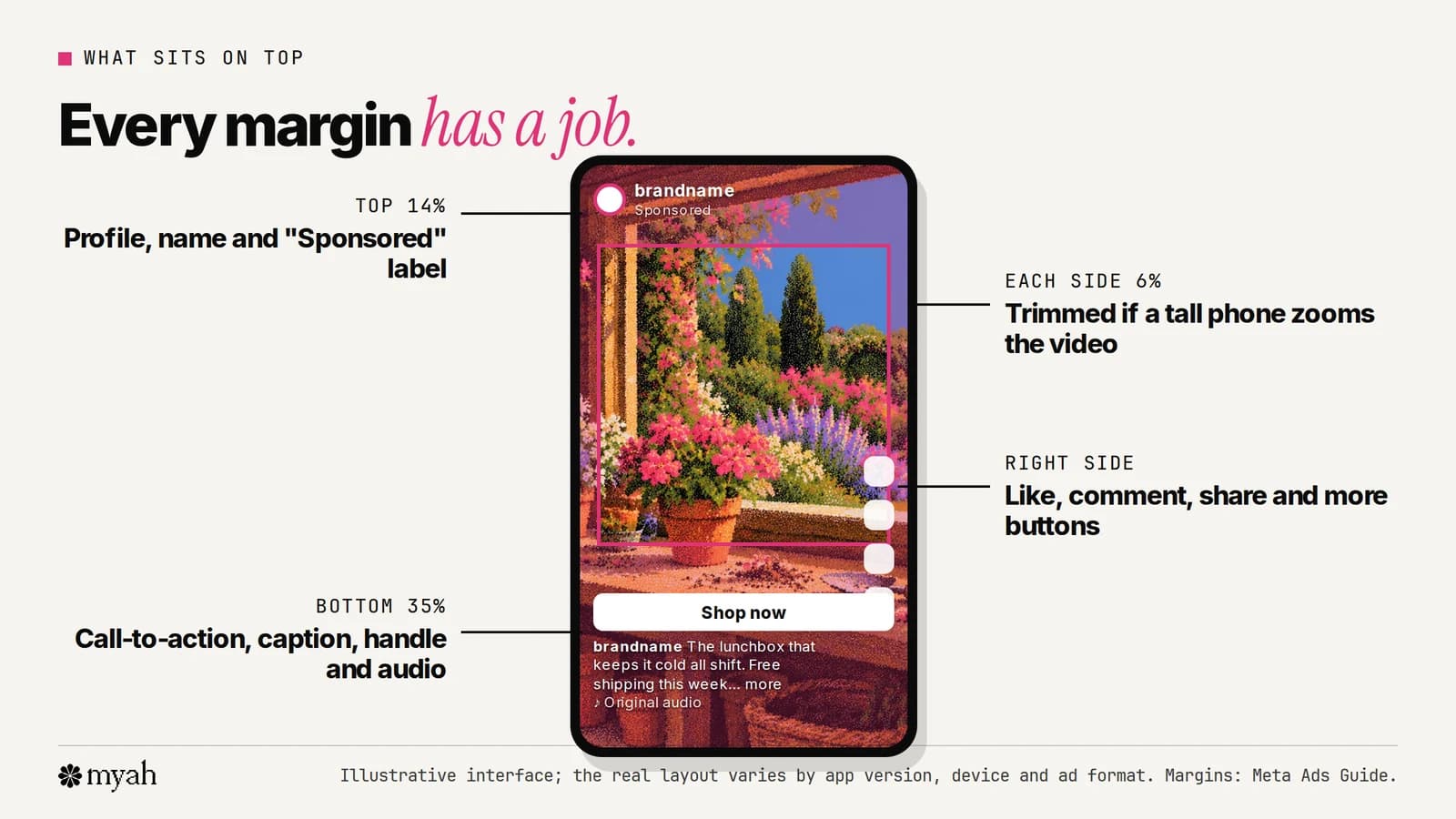
Top 14%
The profile picture, account name and the “Sponsored” or partnership label.
Bottom 35%
The caption, handle, audio label and, on ads, the call-to-action button such as Shop now.
Right side
The like, comment, share and more buttons, just above the bottom band.
Both sides 6%
Phones taller than 9:16 can zoom your video to fill the screen, which trims the edges.
Who it’s for
UGC creators
Check captions and the product shot before you send a video to a brand. Hidden text is one of the most common reasons for a revision request.
Brands and media buyers
Check creator videos before they run as ads, where the Shop now button covers more of the bottom than in an organic post.
Video editors
Download the overlay PNG at 1080 × 1920 or 1440 × 2560 and keep it as the top layer while you place text.
Common mistakes
Captions in the lower third
TV puts captions there, but on Reels the lower third sits under the caption text and the Shop now button. Move on-screen text up into the clear middle.
Text hugging the right edge
Words above the bottom band can still run under the like and share buttons. Keep a gap on the right.
A logo in the top corner
The profile name and “Sponsored” label sit over the top 14%. A corner logo there is half hidden.
Forgetting the disclaimer
Ads with a disclaimer need the bottom 40% clear, about 100 pixels more than usual. Ask the brand before you place text.
Designing to organic only
A video made for your feed may later run as an ad, with a button and longer caption on top. Clear the ad margins and it works for both.
A cover title near the top
Your profile grid may show only the middle of the cover. Keep the cover title centred.
Common questions
What is the Instagram safe zone?
It’s the part of a 9:16 Reel or Story where text, logos and faces won’t be covered by the app’s buttons, caption, profile bar or reply bar. For Reels and Stories ads, Meta asks you to keep 14% of the top, 35% of the bottom and 6% on each side clear.
Is my video uploaded anywhere?
No. The file opens in your browser and never leaves your device. Close the tab and it’s gone. Shared links only carry your settings, like the placement, never the image.
Does the safe zone apply to organic Reels?
Instagram doesn’t publish safe zone numbers for organic posts. The same caption, handle and buttons sit over the bottom and right, so the ad margins are a sensible, slightly cautious guide.
What is the Instagram Story safe zone?
For organic Stories, Instagram doesn’t publish numbers. Hootsuite and Sprout Social both give a safe area of 1080 × 1610 pixels, which leaves about 155 pixels clear at the top and the bottom. Story ads are different: Meta asks you to keep 14% of the top, 35% of the bottom and 6% on each side clear, the same as Reels ads.
What about 4:5 Feed posts?
Nothing sits on top of a Feed image: the profile name is above it and the Shop now button is below. Meta asks advertisers to keep the bottom and side edges clear but publishes no numbers, so the checker shows a 100 px side and 250 px bottom guide from Lucid Media (May 2026) as a heads-up. It also flags what the profile grid crops: about 34 px off each side of a 1080 × 1350 post. A 9:16 video in Feed uses the Reels margins.
Is this the same as Ads Manager’s safe zone guardrail?
It’s the same idea. Ads Manager can show the safe area as a yellow overlay on your creative. The checker works before you have an ad account or an export, and lets you mark exactly what must stay visible.