

You can film ad-ready UGC with the phone you already have. The basics are vertical 9:16 video, soft light from a window in front of you, the phone at eye level, a microphone close to your mouth and a quiet room. Then you edit in a free app such as CapCut, Edits, InShot or VN. This guide covers how to film UGC step by step, the camera settings to change, and how the four editing apps compare.
It also covers the part most filming guides skip. If a brand might run your video as an ad, some editing choices, especially music and effects, decide whether it can be used at all.
What you need (and what you don't)
You don't need a camera, a ring light or a studio to start. Brands are paying for a video that looks like a real person using the product, and a recent phone does that well.
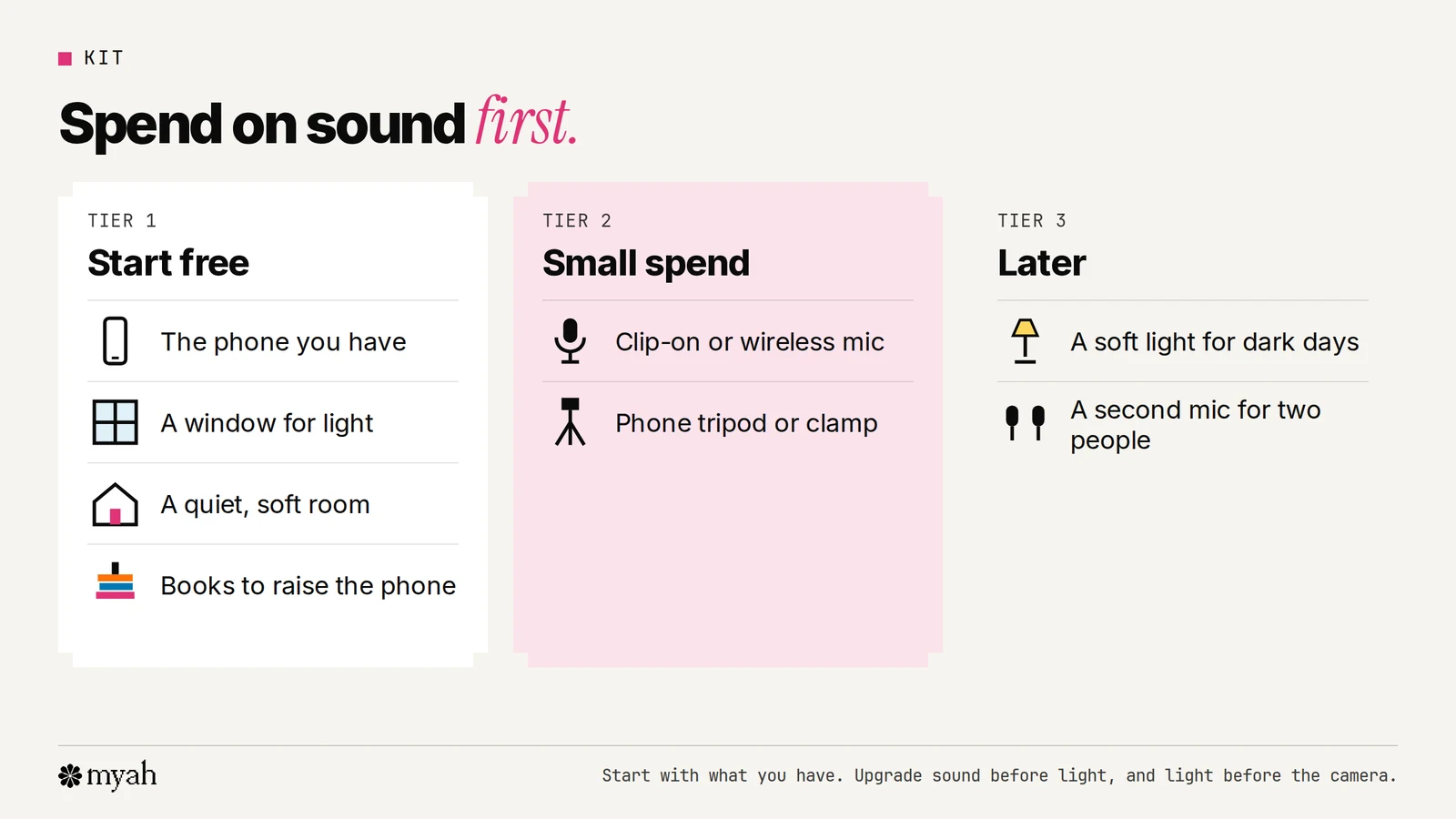
- Start free: your phone, a window, a quiet room, a plain background and a stack of books to hold the phone at eye level.
- Small spend: a clip-on or wireless microphone and a phone tripod. Muddy sound is much harder to fix in the edit than average-looking video.
- Later: a soft light for dark days or evening shoots, and a second mic if you film with someone else.
Set up your phone camera
A few settings make the footage easier to edit and safer to use as an ad. These are the iPhone menus; Android phones have similar options, but the names and places vary by model.
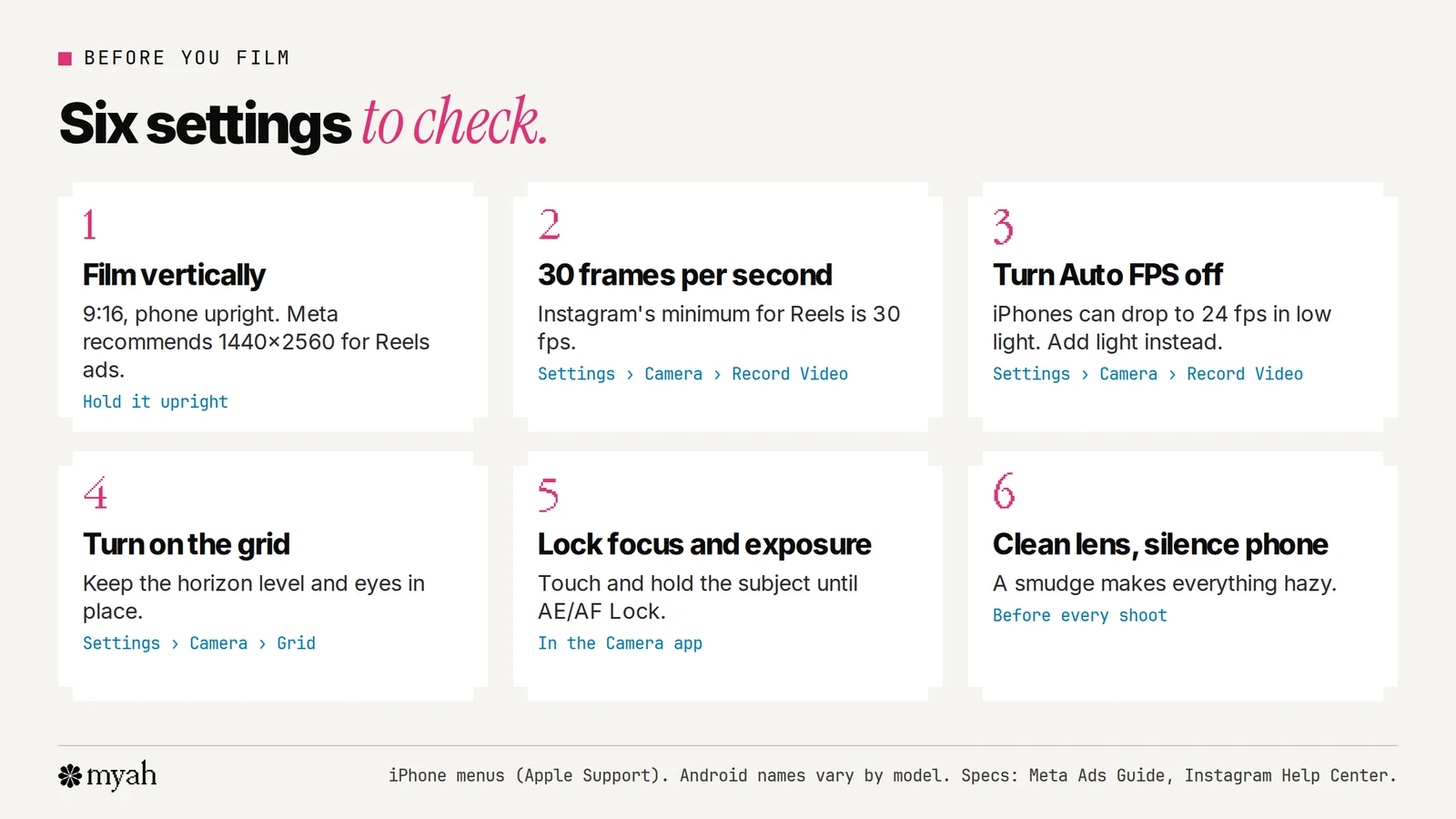
- Film vertically. Hold the phone upright for 9:16. Meta's Ads Guide recommends 1440×2560 pixels for Reels ads, so recording in 4K vertical gives the editor room to spare.
- Pick 30 frames per second. On an iPhone, it's under Settings > Camera > Record Video. Instagram says Reels should have a minimum frame rate of 30 fps.
- Watch the low-light setting. Apple notes that iPhones can automatically drop the frame rate to 24 fps in low light to improve quality. If you want every clip at 30 fps, turn Auto FPS off in the same menu, and add light instead.
- Turn on the grid. Settings > Camera > Grid helps you keep the horizon straight and your eyes in the right place.
- Lock focus and exposure. Touch and hold your subject until you see AE/AF Lock, so the brightness doesn't pulse when you move the product.
- Clean the lens and silence the phone. A smudged lens makes everything look hazy, and a notification ruins a good take.
Use the back camera when you can. The front camera is fine for talking-head shots, but the main camera is usually sharper.
Light: three setups that work
Light makes more difference than the phone. Soft daylight from in front of you is the easiest win.
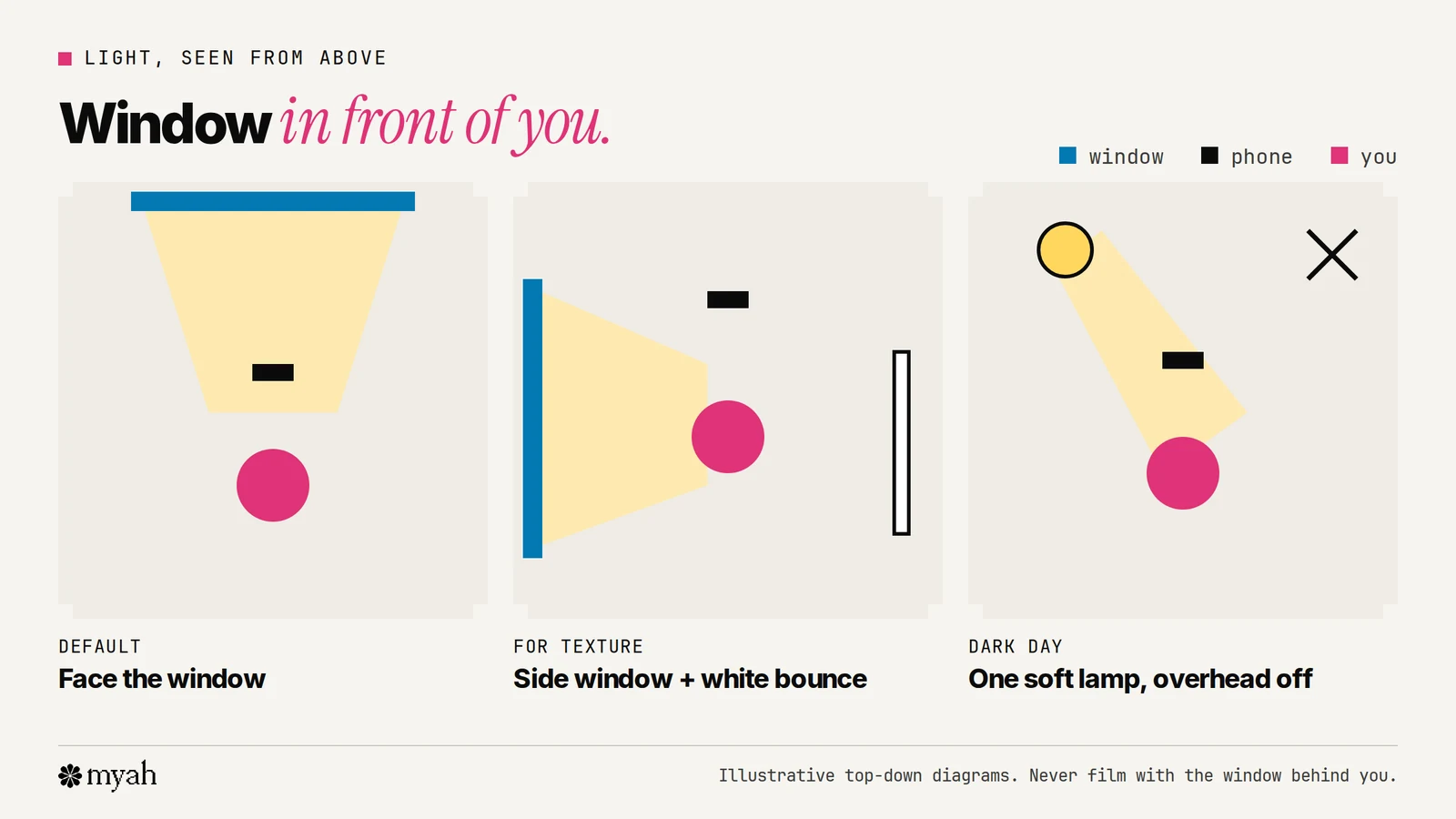
- Face the window. Put the phone between you and the window, so the light falls on your face and the product. This is the best default.
- Window to one side, plus a bounce. Side light shows texture, which suits skincare, fabric and food. A white board, sheet or foam board on the other side lifts the shadows.
- One soft lamp. On dark days, use one lamp with a shade or diffuser in front of you and slightly to one side. Turn off the overhead light, because mixing warm and cool light makes skin look odd.
Avoid a window behind you. The camera exposes for the bright window, and you become a silhouette.
Framing: the three shots most UGC needs
Most UGC videos are built from three kinds of shot. Film all three, and keep the important parts inside the area the app won't cover.
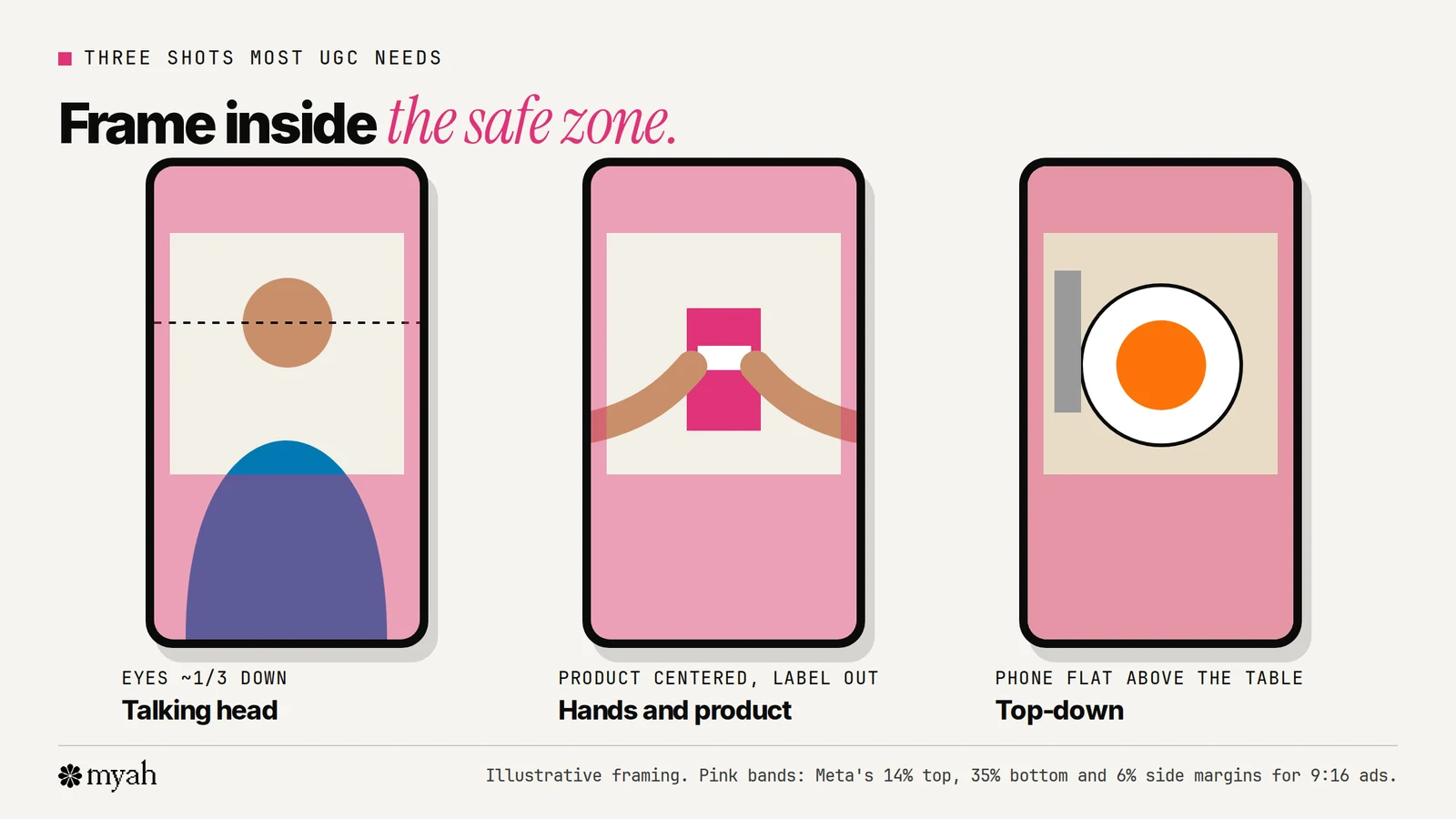
- Talking head. Phone at eye level, about an arm's length away. Put your eyes roughly a third of the way down the frame, below the top 14% that the profile bar covers.
- Hands and product. The product in the middle of the frame, label facing the camera, moving slowly. This is the shot that sells, so film more of it than you think you need.
- Top-down. For food, beauty and anything you unpack or assemble. Hold the phone flat above the table, or use a tripod arm.
Keep labels, faces and on-screen text out of the bottom third. When the video runs as an ad, the caption and call-to-action button sit there. Our Reels safe zone template shows the exact margins.
Sound: get the mic close
Clear sound matters as much as the picture, and it's the harder of the two to fix later.
- Get the microphone close. A clip-on mic on your collar beats the phone's built-in mic across the room.
- Pick a soft room. Rugs, curtains, a sofa and clothes absorb echo. Bare kitchens and bathrooms echo.
- Turn things off. Fridges, fans, washing machines and open windows all show up in the recording.
- Record 10 seconds of silence. That "room tone" helps when you cut lines together.
- Check with headphones before you film the whole thing.
Several editing apps can clean up voices. Edits lists audio enhancement that removes background noise, and InShot lists voice enhance. They help, but they can't fix a mic that was too far away.
Shoot for the edit
A good edit needs more footage than the final video uses. Before you start, write a shot list from your script. Our UGC script template has one built in.
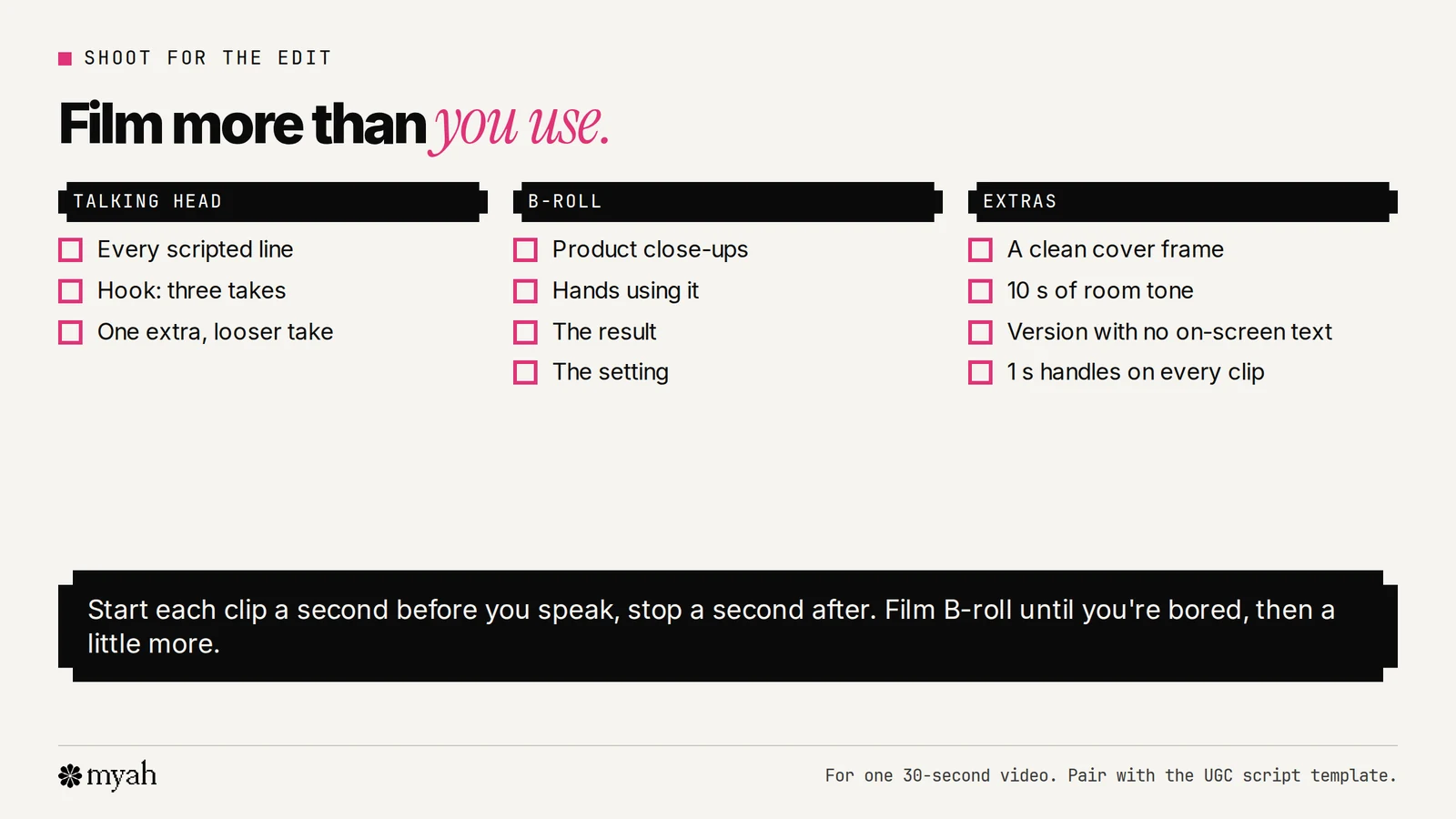
- The talking-head lines, with at least three takes of the hook, so you or the brand can test different openings.
- B-roll: close-ups of the product, your hands using it, the result and the setting. Aim for several seconds of each.
- Handles: start each clip a second before you speak and stop a second after. It makes cutting much easier.
- Extras: a clean cover frame, room tone, and a version without on-screen text if the brief asks for one.
The best editing apps for UGC: CapCut vs Edits vs InShot vs VN
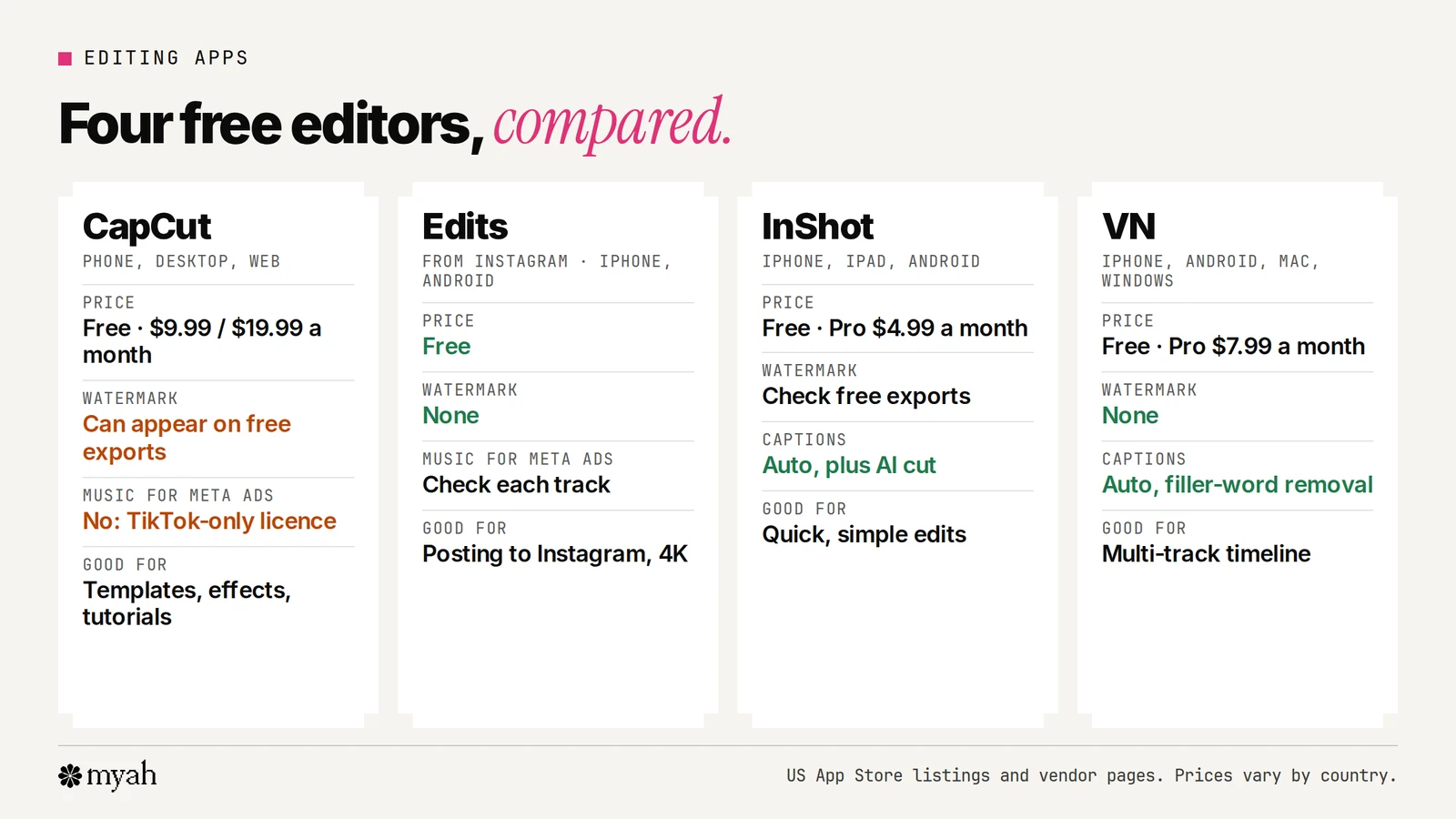
All four are free to download and do the core jobs: trimming, captions, text, music and 9:16 export. The differences are watermarks, paid plans, and how they handle music for commercial use.
| CapCut | Edits (Instagram) | InShot | VN | |
|---|---|---|---|---|
| Price | Free, with paid plans (Standard $9.99/month, Pro $19.99/month on the US App Store) | Free | Free, with InShot Pro $4.99/month, $19.99/year or $49.99 once | Free, with VN Pro $7.99/month or $69.99/year |
| Watermark | Can appear on free exports, depending on templates and features (CapCut) | None (Meta) | Check your export on the free plan | None (VN) |
| Auto captions | Yes | Yes | Yes | Yes |
| Platforms | Phone, desktop and web | iPhone and Android | iPhone, iPad and Android | iPhone, Android, Mac and Windows |
| Good for | Templates, effects and the most tutorials | Posting to Instagram, no-watermark 4K exports | Quick, simple edits | Multi-track editing, free with no watermark |
Prices are from the US App Store listings and change by country.
CapCut
The best known of the four, with templates, effects, auto captions and a large tutorial community. For US users, its Materials License Agreement is with TikTok USDS Joint Venture LLC. Two things to watch for UGC:
- Watermarks. CapCut's own help pages say free exports can carry a watermark or ending clip depending on the templates and features you use. Check the exported file before you send it.
- Music and assets for ads. Under CapCut's US license, materials without a "commercial use" mark are for personal, non-commercial use, and you "shouldn't use a Sound for any commercial purpose", including promoting a brand, without the rights. Even its Commercial Sounds are only licensed for posting on CapCut, TikTok and TikTok for Business. So CapCut music is the wrong choice for a video that will run as a Meta ad.
Edits
Instagram's own editor. Its App Store listing describes 4K exports with no watermark, clips up to 10 minutes, automatic captions, green screen and audio enhancement, and Meta says you can export and post anywhere with no added watermarks. It also includes music, including royalty-free tracks. Before a video goes to a brand as an ad, check that its music is cleared for ads, using the rules in the next section.
InShot
A simple, fast editor that a lot of creators learn on. The App Store listing includes auto captions, AI cut for silences and filler words, voice enhance and 4K 60 fps export. Pro unlocks all pro content and tools.
VN
A free editor with a multi-track timeline that markets itself as having no watermarks. The listing includes auto captions in multiple languages, filler-word removal and 4K 60 fps export. It runs on phones and computers, which helps if you want to finish an edit on a bigger screen.
A simple editing workflow
Whichever app you pick, the same order saves time.
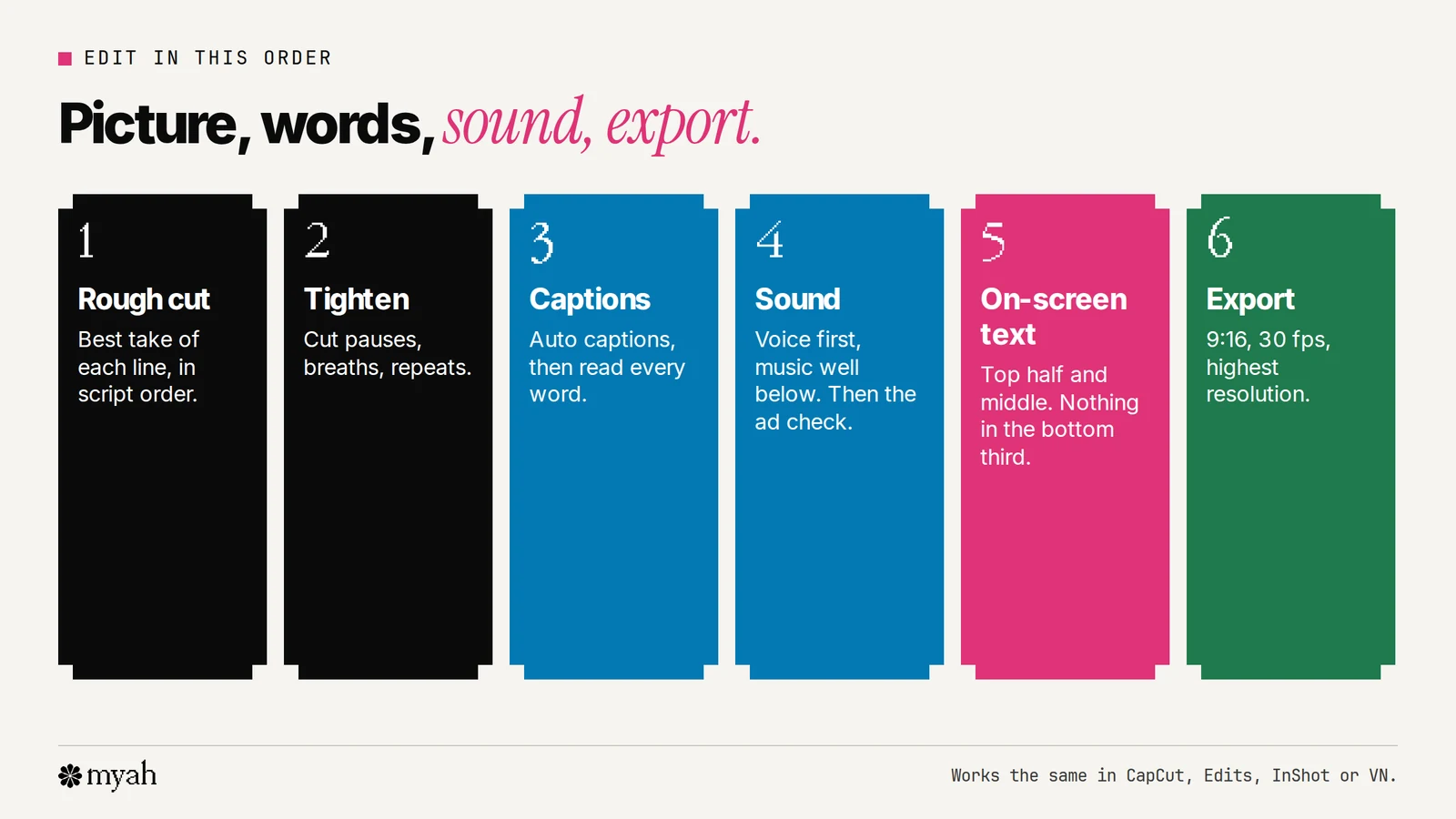
- Rough cut. Lay down the best take of each line in script order. Ignore effects for now.
- Tighten. Cut pauses, breaths and repeated words. First edits usually run slow.
- Captions. Generate auto captions, then read every word. They often get product names wrong.
- Sound. Balance your voice against any music, which should sit well below speech. Then make the music decision below.
- On-screen text. Hook text in the top half, key claims and prices in the middle, nothing in the bottom third.
- Export. 9:16, 30 fps, and the highest resolution the app offers, which brings us to export settings.
Music and effects if a brand will run it as an ad
This is where good UGC gets rejected. A sound that's fine on your own account may not be allowed in an ad.
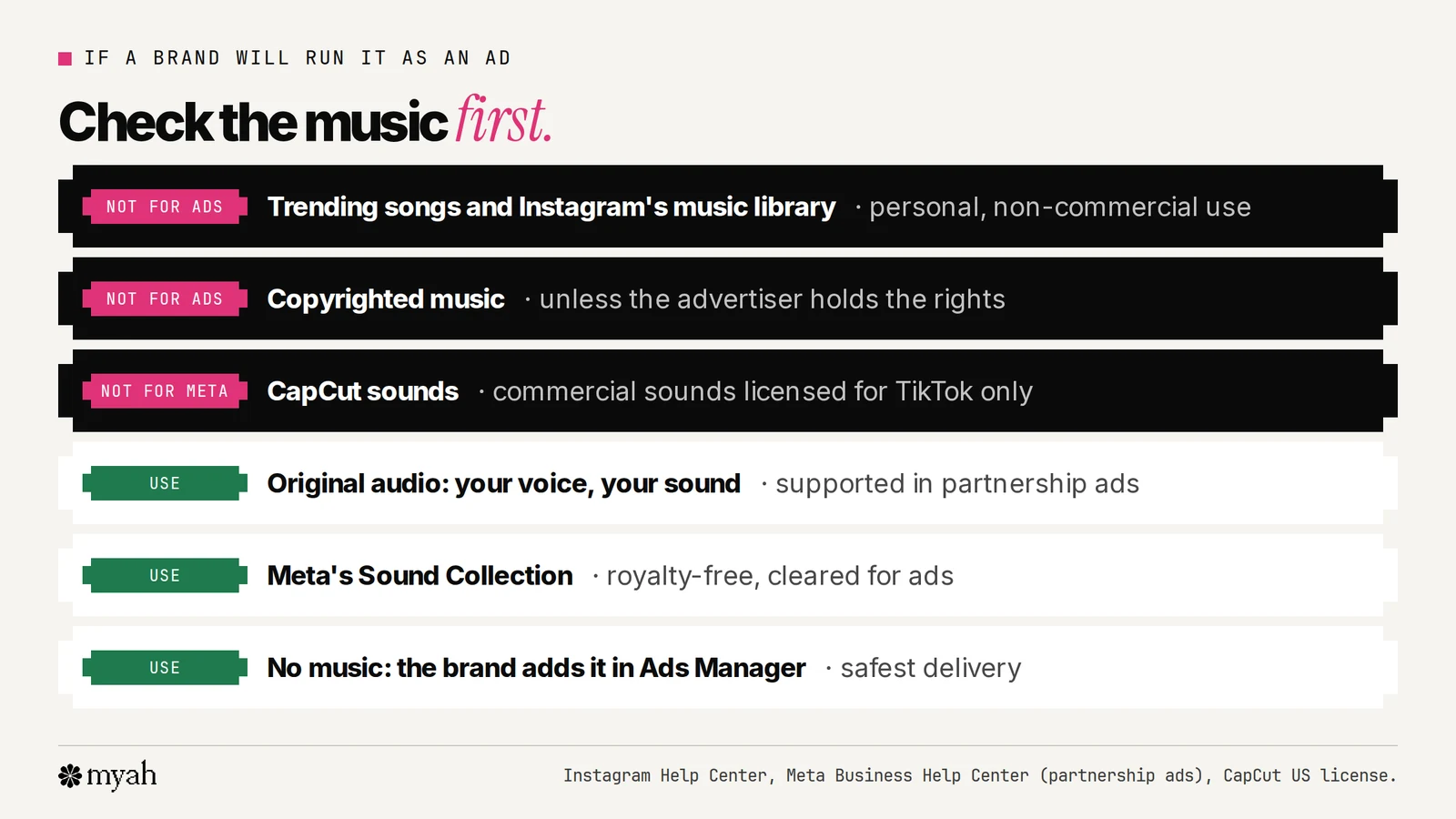
- Instagram's music library is for personal use. Instagram says the music in its library is "intended for personal, non-commercial use".
- Partnership ads support two kinds of music. For Reels, Meta lists royalty-free music from the Sound Collection and original audio as supported, and copyrighted music and music from the Instagram music library as unsupported, unless the advertiser holds the rights.
- Meta's Sound Collection is cleared for ads. It has over 14,000 royalty-free songs and sounds that can be used for commercial purposes like ads.
- CapCut's sounds are for TikTok. As covered above, even CapCut's Commercial Sounds are only licensed for CapCut, TikTok and TikTok for Business.
- Effects matter too. Meta's list of eligible formats for partnership Reels ads marks face and camera effects, product tags and tappable stickers as unsupported.
The safest approach is to deliver a version with your voice and original sound only, and let the brand add licensed music in Ads Manager if it wants it. Agree it in the brief, along with usage rights, before you edit.
Export settings
Meta's spec for Reels and Stories video ads is MP4 or MOV, 9:16, H.264 compression, square pixels, a fixed frame rate, progressive scan and stereo AAC audio at 128 kbps or more, at a recommended 1440×2560 pixels.
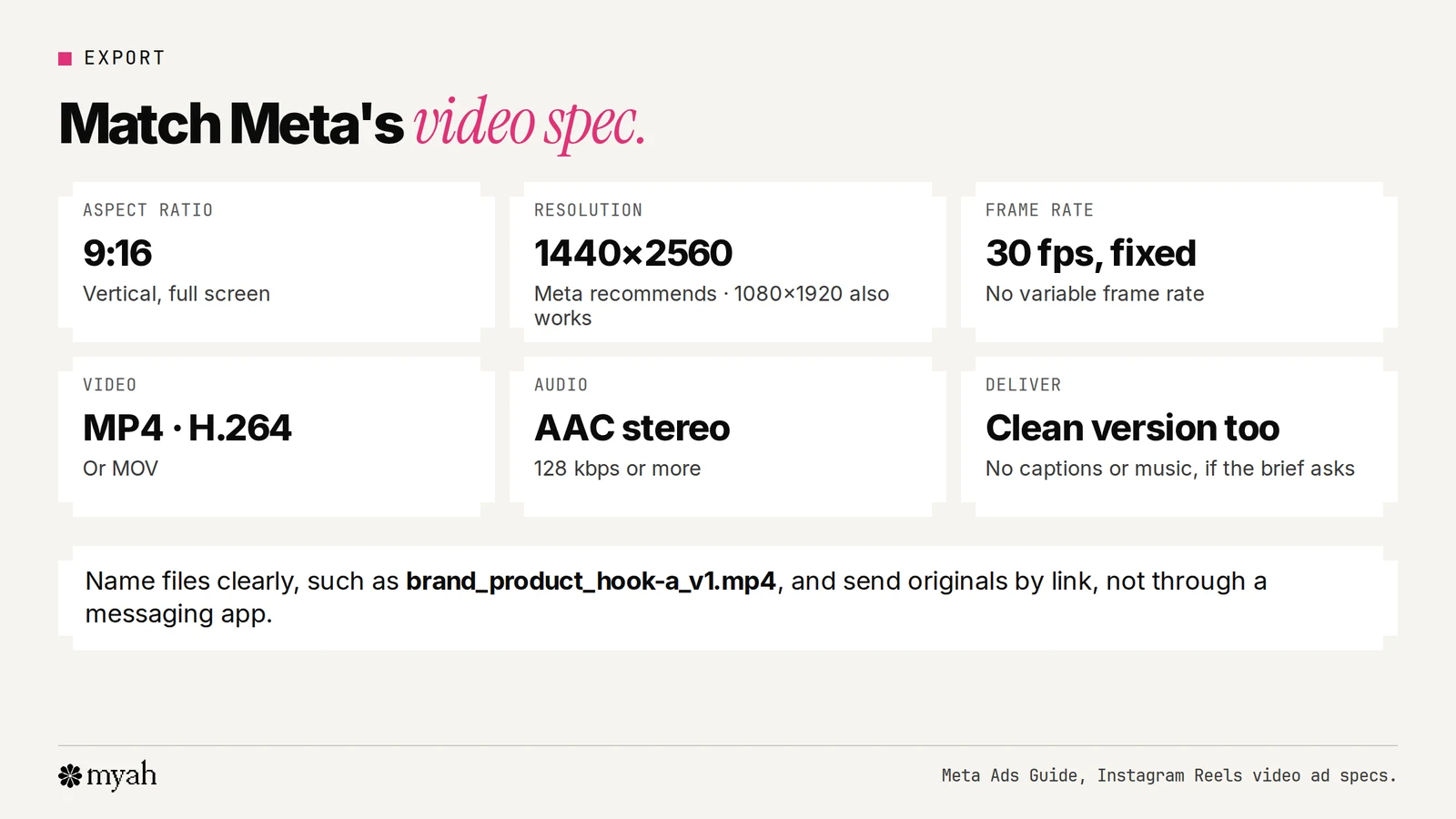
In practice, most apps' highest-quality 9:16 export at 30 fps meets this. Name files clearly, for example brand_product_hook-a_v1.mp4, and send the original file through a link rather than a messaging app, which may compress it.
Free filming and editing checklist
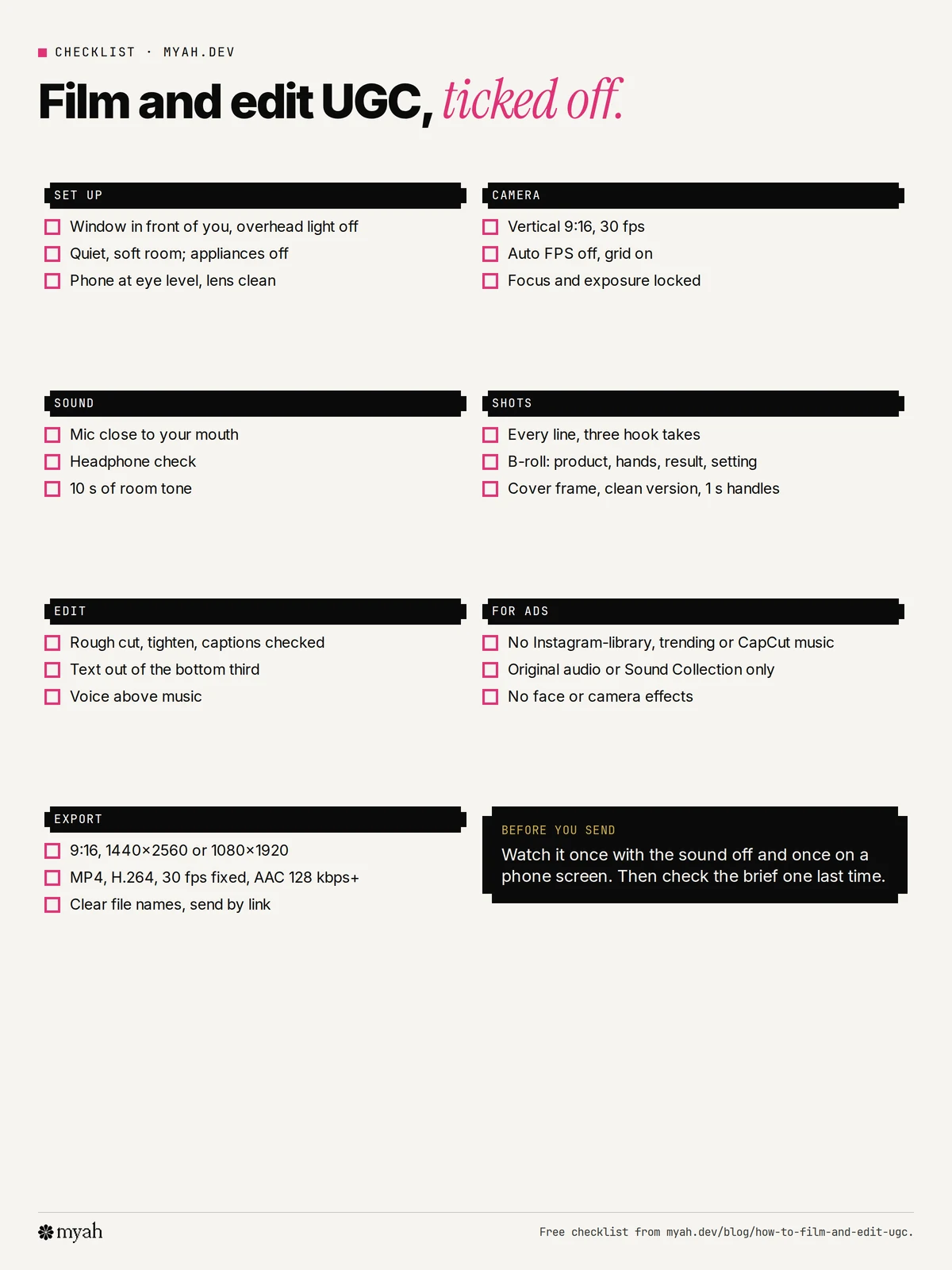
Print or save this one-page checklist with the kit, settings, lighting, shot list, music rules and export settings. Download the PDF.
Common questions
What equipment do UGC creators need?
A recent phone, a window for light and a quiet room are enough to start. The first things worth buying are a clip-on microphone and a phone tripod. A light and a better camera can wait.
What is the best editing app for UGC?
It depends on the job. VN and Edits are free with no watermark, InShot is quick and simple, and CapCut has the most templates and tutorials. If the video will run as a Meta ad, avoid CapCut's music and stick to original audio or Meta's Sound Collection.
Can I use CapCut music in a UGC ad?
Not for a Meta ad. CapCut's US license says its regular sounds aren't for commercial use without the rights, and its Commercial Sounds are only licensed for CapCut, TikTok and TikTok for Business.
Is the Edits app free?
Yes. Edits is free on the App Store, and Meta says it exports without watermarks.
What frame rate should I film UGC in?
30 frames per second is a safe default. Instagram's minimum for Reels is 30 fps, and Meta's ad specs ask for a fixed frame rate.
How do I film UGC without showing my face?
Use hands-and-product shots, top-down shots and a voiceover. Several of the script frameworks, such as a demo or three reasons, work well without a face on camera.
Where to go next
- UGC script template: plan what you'll say and shoot.
- Instagram Reels safe zone template: keep text and products visible.
- How to build a UGC portfolio with no client experience: put your first videos to work.
- UGC usage rights for paid ads: what to agree before a brand runs your video.
Myah is building a performance-UGC marketplace for brands and creators. Brands run approved videos as ads in their own Meta Ads Manager. Join creator early access or join brand early access for updates from Myah. Early access does not guarantee campaigns, availability or earnings.